22. July 2026
Building a Single-File Offline Meal Planner
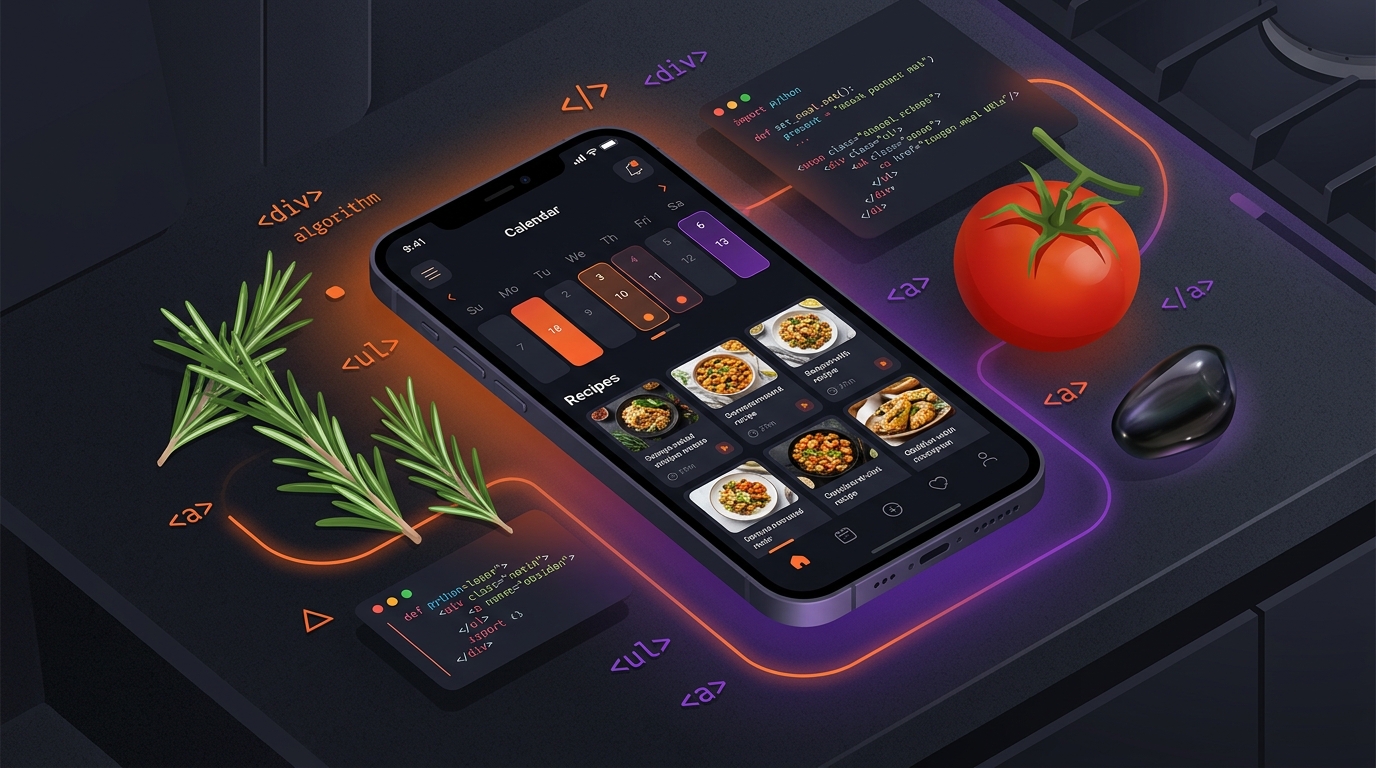
Everyone has this problem - What should I cook today. I’ve been trying to automate my daily tasks and have been using upliance.ai’s device to cook for me for over three years now. Hence, I decided to build a meal planner that would help me schedule the meals. I should work entirely offline on my phone, reading directly from my existing Obsidian recipe notes. Upliance.AI has over 400 recipes, and these were stored as markdown files in my Obsidian vault, each with YAML frontmatter for calories, ingredients, and categories. The goal was to build a weekly drag-and-drop schedule, automatically combine ingredients for a shopping list, and have a mobile-friendly touch interface - all inside one file. The most important function - automatically fill the plan based on preferences, that can be modified by dragging and dropping.
I built it as a single-page HTML app. It doesn’t need Node, it doesn’t need a backend server, and it doesn’t need to be installed. I simply open the file in Chrome. And of-course I’m lazy - and don’t know too much about js frameworks - so back to AI, I went. I’ve been experimenting with Google Antigravity, and decided this was the way to go ahead. I created a project in Antigravity that has access to my Obsidian Notes. and gave it the following prompt:
You are an expert full-stack UI/UX developer. Build a single-page interactive Meal Planning React Application using React, Tailwind CSS, and Lucide React icons (or standard HTML5 drag-and-drop).

## Technical Requirements

Produce a COMPLETE SINGLE HTML FILE.
Requirements:
	Everything should work offline.
	Embed all CSS, JavaScript and recipe data.
	Do not require any server.
	Do not require installation.
	Do not require Python.
	Do not require Node.
	Do not require React.
	Do not require npm.
	Do not split into multiple files.
	Everything should be inside one HTML file.

Use high-quality JavaScript libraries via CDN if needed (such as Plotly.js, Chart.js, Apache ECharts, DataTables, D3.js, or AG Grid).

### Data Source Requirements

1. Parse and use the md files in the Recipes/ folder in Obsidian containing attributes:
   - `title`: Recipe Name (e.g., "Afghani Chicken", "2 Pepper Barley Bowl")
   - `calories`: Number (e.g., 998)
   - `cookTime`: String/Number (e.g., "36 mins")
   - `mainIngredient`: String
   - `categories`: Array of strings parsed from bulleted/dot-separated tags (e.g., ["North Indian", "Main Course Gravy"], ["Continental", "Healthy", "Breakfast"])

### Key Features & Workflow

#### 1. Filter & Preference Panel (Sidebar / Top Bar)
- **Category Filter**: Extract all unique categories (e.g., Main Course Gravy, Breakfast, Healthy, Beverages, One Pot Meal, Italian, North Indian).
- **Meal Type Selection**: Allow users to toggle active meal slots for their daily plans (e.g., Breakfast, Lunch, Dinner, Snacks/Beverages).
- **Search & Sort**: Real-time search bar for recipe names/ingredients, plus sorting by calories or cook time.
- **Preferred Tags Multi-Select**: Highlight or automatically suggest recipes matching selected preferred cuisines or dietary tags.

#### 2. Drag-and-Drop Weekly Planner Grid
- **7-Day Layout**: Rows for Monday through Sunday.
- **Dynamic Slots**: Render slots corresponding only to the selected meal types (e.g., Breakfast, Lunch, Dinner).
- **Interactive Drag-and-Drop**:
  - Users can drag recipe cards from the available Recipe List and drop them into any specific day/meal slot.
  - Users can drag meals between slots or remove them using a quick action icon ("X").
- **Automatic Auto-Fill Plan**: Include an "Auto-Generate Weekly Plan" button that randomly or smartly populates empty slots using the filtered/preferred recipe list.

#### 3. Summary & Analytics Dashboard
- Calculate live total weekly calories and daily average calories based on assigned meals.
- Display meal counts and estimated preparation times.

#### 4. Recipe Pairings
The categories have "Breakfast", "Snack", "Main Dish", "Side Dish" in them - use these to plan. e.g. a breakfast dish should not be included for lunch / dinner. For Lunch / Dinner, if the calories in a main dish are less, add a side dish.

Use the following prompt to create a list of recommended pairings from the recipes.

Prompt Rule:
"You are a culinary expert. Evaluate if [Dish A] and [Dish B] make a culturally and texturally complete meal.
Rule 1: Do not pair plain plain rice/bread with a raw salad unless there is a main gravy or protein.
Rule 2: Match flavor profiles and regional cuisines.
If invalid, replace [Dish B] with a suitable pairing from the dataset."
Then use only the recommended pairings whenever a Main Dish and Side Dish are included.
Culinary Expert Pairing Rules & Title-based Categorization:
Compile and load a smart pairing database
 mapping each Main dish to highly compatible side dishes based on texture, regional cuisine, and plain-carb constraints (e.g., plain rice/bread must pair with a wet gravy/dal rather than raw salads).
Correct Side Dish Classification: Fixed a bug where raitas, soups, or salads with general categories (like Cucumber Onion Raita) were classified as main dishes. The app should parse recipe titles for keywords (raita, salad, soup, chutney, etc.) to guarantee 100% correct course classification.

Strict Category Planning Rules:

Breakfast Slot: Only accepts recipes categorized as Breakfast (e.g. Bread Paneer Poha, Boiled Eggs).
Snacks/Beverages Slot: Only accepts recipes categorized as Snacks, Beverages, Desserts, or Pickles (e.g. Hot Cocoa, Aam Panna).
Lunch & Dinner Slots: Only accept Main Dishes and Side Dishes.
Toast Alert Safeguard: Attempts to drop invalid categories (e.g. a breakfast dish to Dinner) are blocked, triggering a custom warning toast notification.

#### 5. Full Shopping List Generation:

Generation Flow: Add a premium CTA card and gradient button (Generate Shopping List) to the side panel once a meal plan is chosen.
Checklist Compilation: Clicking the button extracts, consolidated, and lists every ingredient required across all breakfast, main, side, and snack items.
Interactive Checklist: Let's you tick off items as you shop.
Easy Clipboard Copy: Copying the shopping list outputs a nicely formatted Markdown list containing checkmarks, counts, and which recipes they belong to.
Auto-Sync State: Resetting, changing, or clearing the meal plan automatically prompts you to generate a fresh shopping list.

#### 6. Veg / Non-Veg Diet Preferences:

Main Ingredient Based Evaluation: Categorize all 467 recipes as Veg or Non-Veg dynamically. Ingredients like chicken, mutton, fish, prawn, egg, pork, and beef are mapped as Non-Veg.
Pill Toggle Filters: Add a beautiful colored diet filter toggle (All / Veg / Non-Veg) to the recipe explorer sidebar.
Visual Badges & Dots:
Display Veg (green) and Non-Veg (red) badges on recipe card lists and the details modal.
Embed compact colored dot indicators next to planned items on the calendar board.
Auto-Generate Integration: The plan generator should automatically respect the active Diet Preference (e.g., selecting Veg Only produces a completely vegetarian weekly plan).
I’m sure all of you are wondering that creating this prompt would have been difficult. You’re right, but I used Gemini again for this:
What's the best way to create a meal plan from a list of recipes already downloaded (attached the recipe index, and one sample page). I want the user to be able to filter categories, choose preferred categories and build an automated weekly plan. The user should then be able to update the plan by dragging and dropping recipes from a list. The user should be able to choose the meals they want the plan for (e.g. breakfast, lunch, dinner, snacks) - create a prompt that would allow me to build an app using Antigravity or Claude.
Gemini gave me the prompt I used above, and I modified the inputs and made some changes:
- Asked Gemini to create a single HTML file - instead of a python backend which it defaults to.
- Added logic for recipe pairing - didn’t want it giving me 2 soups or raitas for lunch.
- Added logic for Veg / Non-Veg (#6 above)
The Implementation Plan
Antigravity went ahead and prepared and implementation, and all I had to do was review it and click on Proceed. The implementation plan detailed out:
- Architecture and Frameworks - a single HTML file was important and that’s what it specified
- Course Classifications - rules for veg/non-veg, course types (breakfast, lunch, snack, etc.)
- Pairing Engine and how it would work based on the rules I had given
- User Interface Design
- Verification Plan
I clicked on Proceed and let Antigravity do it’s magic
Execution of the Plan
Now, I can’t give you the step-by-step breakdown and the technical details behind what Antigravity id; but then I don’t need to. Antigravity went ahead and built the app within a few minutes:
- Built a python script to read the recipe cards and convert it to JSON data for the HTML
- Used React and Tailwind to create the layout (don’t ask me how)
I tried it, and it works very well. Now on to the refinements
Refinement
As I said the app works pretty well, but wanted to refine some of the features:
- Adaptive mobile layout, so that it works on a mobile or on a desktop. Took a few tries - and is probably not perfect even now. But works
- Export to PDF - once the plan is finalised and the shopping list is generated - export it to a simple PDF
- There’s an issue with the Upliance website where some of the ingredients are UUID codes (gibberish for the likes of us) - and I asked Antigravity to build logic, to exclude those recipes. I hope Upliance corrects this, so that I can regenerate the HTML and include those recipes as well.
For now, it does the job I want, and if you’re interested - here’s the file:
Let me know if you’d like changes / additional features.